If you’re wondering how to set up AirTag for the first time, you’re not alone. AirTags look effortless from the outside, but the setup process has a few steps that many new users overlook, especially when connecting to the Find My network or registering the AirTag correctly.
As someone who has helped countless people connect their AirTags to everything from luggage to camera bags, I’ve learned the smoothest, most reliable method to get it working instantly.
This guide walks you through the entire setup process, explains what you need before you begin, and breaks down common issues so you don’t get stuck halfway. By the end, your AirTag will be fully linked, named, and ready to track.
What You Need Before You Set Up an AirTag
Before learning how to set up AirTag, make sure your iPhone meets Apple’s essential requirements. Missing even one of these can prevent the AirTag from appearing during setup.
Requirements Checklist
- iPhone with iOS 14.5 or later
- Bluetooth turned on
- Find My app enabled
- Apple ID signed in
- Two-factor authentication enabled
- Internet connection available
- Plastic battery tab removed from the AirTag
If all of these are ready, you’re good to start the setup.
How to Set Up AirTag: The Full Step-By-Step Process
Below is the exact process I use when setting up a new AirTag. Following these steps in order eliminates pairing delays and connection errors.
1. Unbox the AirTag and Activate the Battery

Remove the plastic tab wrapped around the AirTag. Once the tab detaches fully, you’ll hear a soft chime. That sound means the AirTag battery is active and ready to connect.
If you don’t hear a sound, the battery might not have seated properly—reinsert it and try again.
2. Open the Find My App on Your iPhone

Once the AirTag is powered, open the Find My app. At the bottom, tap the Items tab. This is where all AirTag and device trackers live.
3. Tap the Plus Icon and Select “Add AirTag”
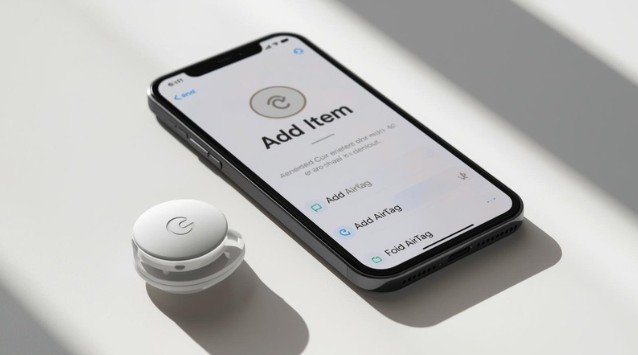
In the Items tab, tap the small plus icon. A menu will appear—choose Add AirTag.
Your iPhone will now begin scanning for nearby AirTags.
4. Bring the AirTag Close to Your iPhone
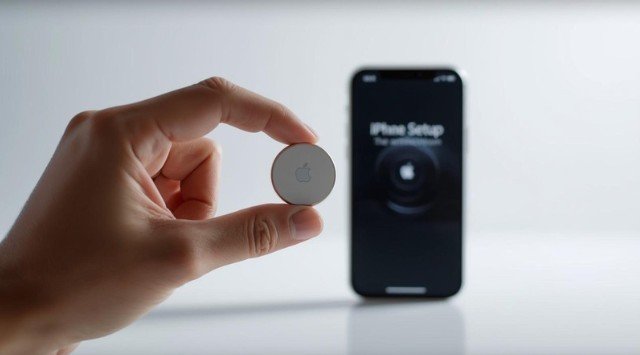
Hold your AirTag about one to two inches away from your iPhone. A setup animation should instantly pop up on your screen.
Tap Connect when it appears. If nothing pops up, I recommend toggling Bluetooth off and on, then trying again.
5. Choose a Name or Create a Custom Label
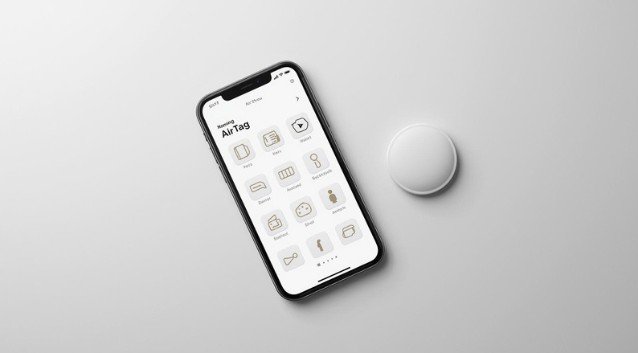
Apple gives you preset options like:
- Keys
- Wallet
- Backpack
- Camera
- Handbag
- Luggage
You can also choose Custom Name if you want something more specific like “Work Backpack” or “Travel Bag A.”
Adding an emoji makes it easier to identify at a glance.
6. Register the AirTag to Your Apple ID
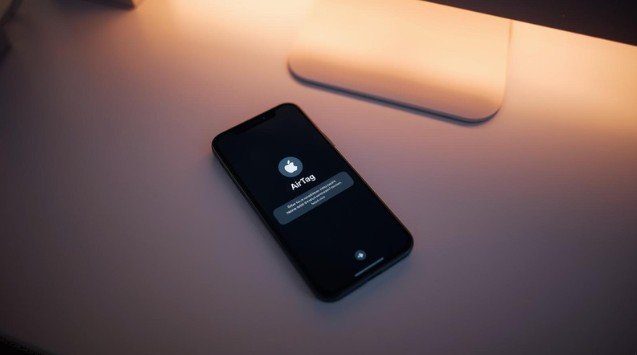
Your iPhone will now ask you to register the AirTag to your Apple ID. This step connects the AirTag permanently to you. Even if someone else finds it, they can’t link it to their device without removing it from your account first.
Tap Continue and agree to the terms.
7. Tap Done and Check Your Items List
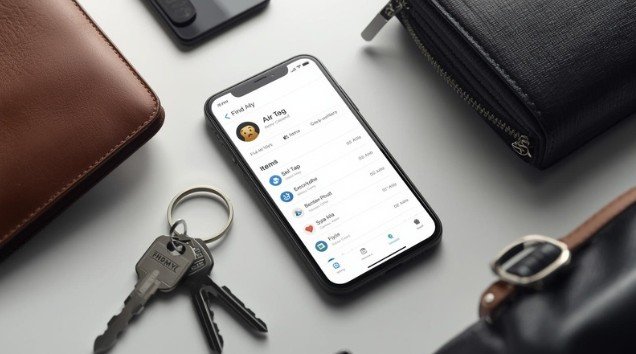
Once registered, tap Done. You’ll now see your AirTag listed under the Items tab with its chosen name and emoji.
From here, you can access:
- Precision Finding
- Play Sound
- Notifications
- Lost Mode
- Directions to its location
Your AirTag is officially set up.
AirTag Setup Comparison Table
Here’s a quick comparison between a correct setup and the common mistakes new users make. This will help you troubleshoot or double-check your process.
| Setup Step | Correct Action | Common Mistake |
| Activate AirTag | Remove full battery tab until it chimes | Tab not fully removed, no chime |
| Enable Bluetooth | Keep Bluetooth on | Bluetooth left off |
| iPhone Requirements | iOS 14.5+ and Apple ID signed in | Older iOS version or no Apple ID |
| Starting Setup | Use Find My → Items → Add AirTag | Searching for AirTag in Settings |
| Connection | Bring AirTag close to iPhone | Holding AirTag too far away |
| Naming | Use preset or custom name | Skipping naming and leaving default |
| Registering | Link to Apple ID | Forgetting to complete registration |
| Final Check | AirTag appears in Items list | AirTag not showing due to missed steps |
Troubleshooting: What to Do if Your AirTag Won’t Set Up
Even with a simple device like AirTag, setup issues happen. Here’s how to fix the most common ones.
Reset the AirTag
If the AirTag belongs to someone else or won’t connect, you may need to reset it.
To reset:
- Press and twist the metal back counterclockwise.
- Remove the battery.
- Reinsert the battery until you hear a chime.
- Repeat the remove-and-reinsert process five times.
- On the fifth time, the sound will change.
- Put the cover back on and twist clockwise.
The AirTag is now fully reset and ready to set up again.
Restart Your iPhone
You’d be surprised how often a simple restart resolves Bluetooth connection problems.
Update iOS
Old software can block Find My features. Make sure your iPhone is running iOS 14.5 or later.
Check if the AirTag Is Still Linked to Another Apple ID
If someone else previously used the AirTag, they must remove it from their account in Find My.
Tips for Getting the Most Out of Your AirTag
Once you’ve learned how to set up AirTag, these tips help you use it more efficiently.
Use Durable AirTag Holders
Choose holders based on purpose:
- Key rings for keys
- Slim card-style inserts for wallets
- Silicone bands for pet collars
- Rugged cases for luggage
Rename AirTags to Avoid Confusion
If you own multiple AirTags, label them with clear names like “Main Camera Bag” or “Check-In Suitcase.”
Replace the Battery Yearly
AirTags use CR2032 batteries, which last about one year. You’ll get a notification when it’s low.
Use Precision Finding
If you have an iPhone 11 or later, Precision Finding uses ultra-wideband to guide you directly to your lost item with on-screen directions.
FAQs: Your Top Questions About Setting Up AirTag
1. Can I set up an AirTag without an iPhone?
No. AirTags require an iPhone or iPad running iOS/iPadOS 14.5 or later. They cannot be set up using Android devices.
2. Why isn’t my AirTag showing up during setup?
This usually means Bluetooth is off, the AirTag battery didn’t activate, or your phone doesn’t meet the iOS requirements. Turn Bluetooth on, restart your iPhone, and make sure the AirTag chimed when activated.
3. Can two people use the same AirTag?
Only one Apple ID can register an AirTag. You can share location updates with someone through the Find My app, but the AirTag still remains linked to one owner.
4. Do AirTags need Wi-Fi to work?
No. AirTags use Bluetooth and the Find My network of nearby Apple devices. Your iPhone only needs internet access to update the location on your map.
Final Thoughts: Setting Up an AirTag the Right Way
Learning how to set up AirTag is simple once you know the correct order of steps. The key is activating the battery properly, using the Find My app, and making sure your iPhone meets Apple’s requirements. Once connected, an AirTag becomes one of the easiest and most reliable tracking tools for everyday items.
Whether you’re using it for luggage, keys, a backpack, or anything else you don’t want to lose, this setup guide ensures your AirTag starts working instantly and stays reliable for the long term.